
From there, navigate to the top and select the option Settings
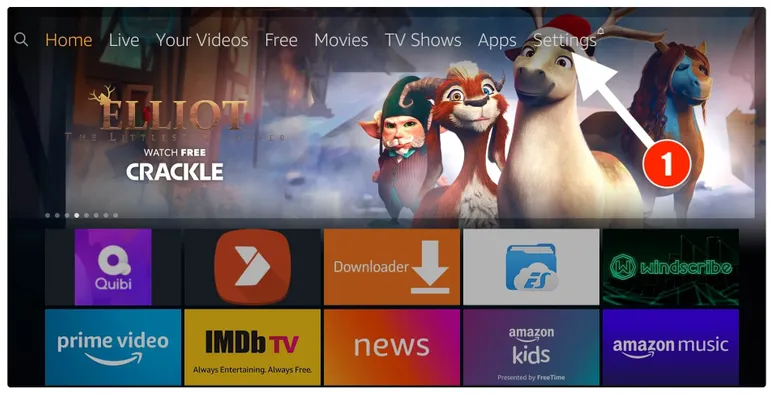
– Within Settings, go to the option My Fire TV and open it
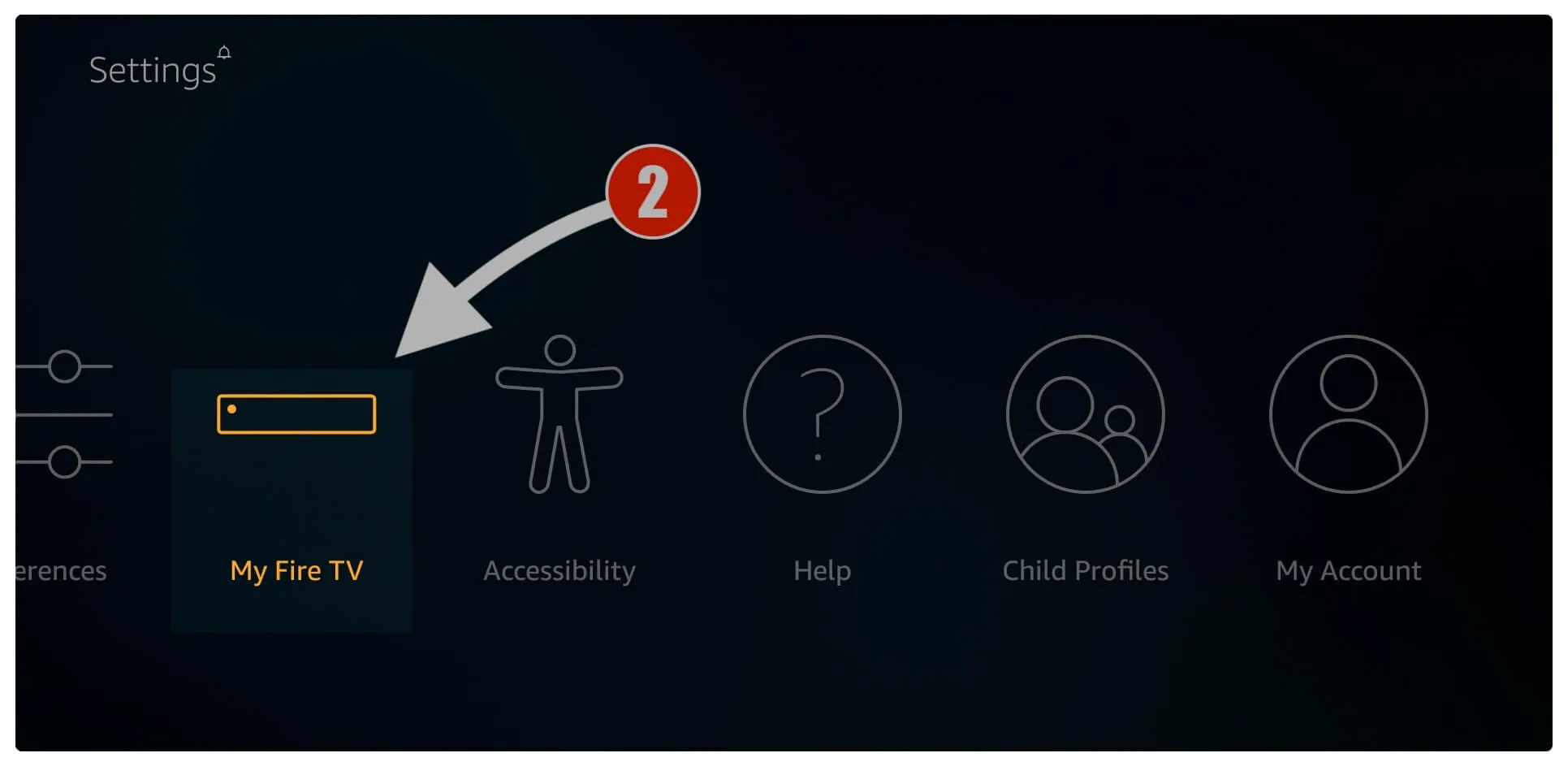
– Now, the next option you will access is Developer Options
If you don't see the Developer Options, Then please click on the "About" option 7 times Exactly and the Developer options will appear.
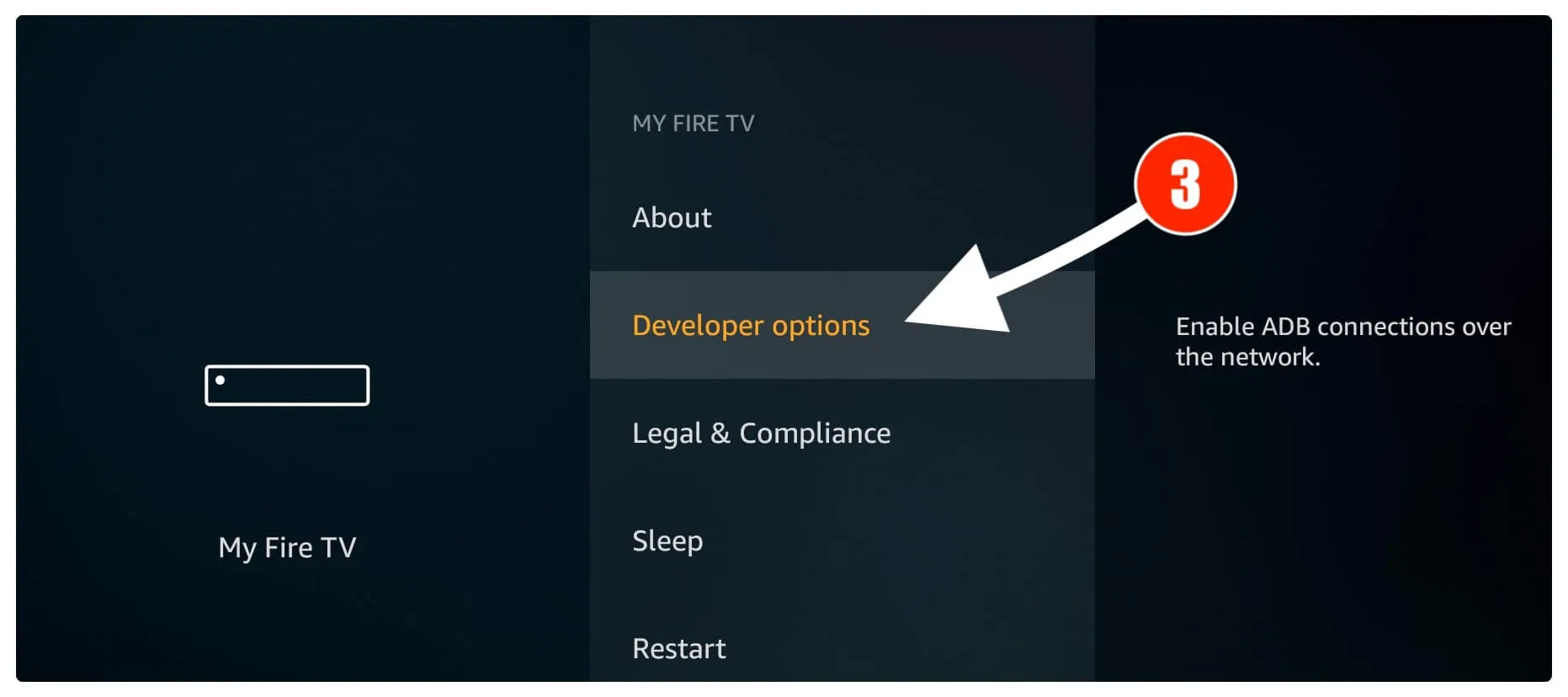
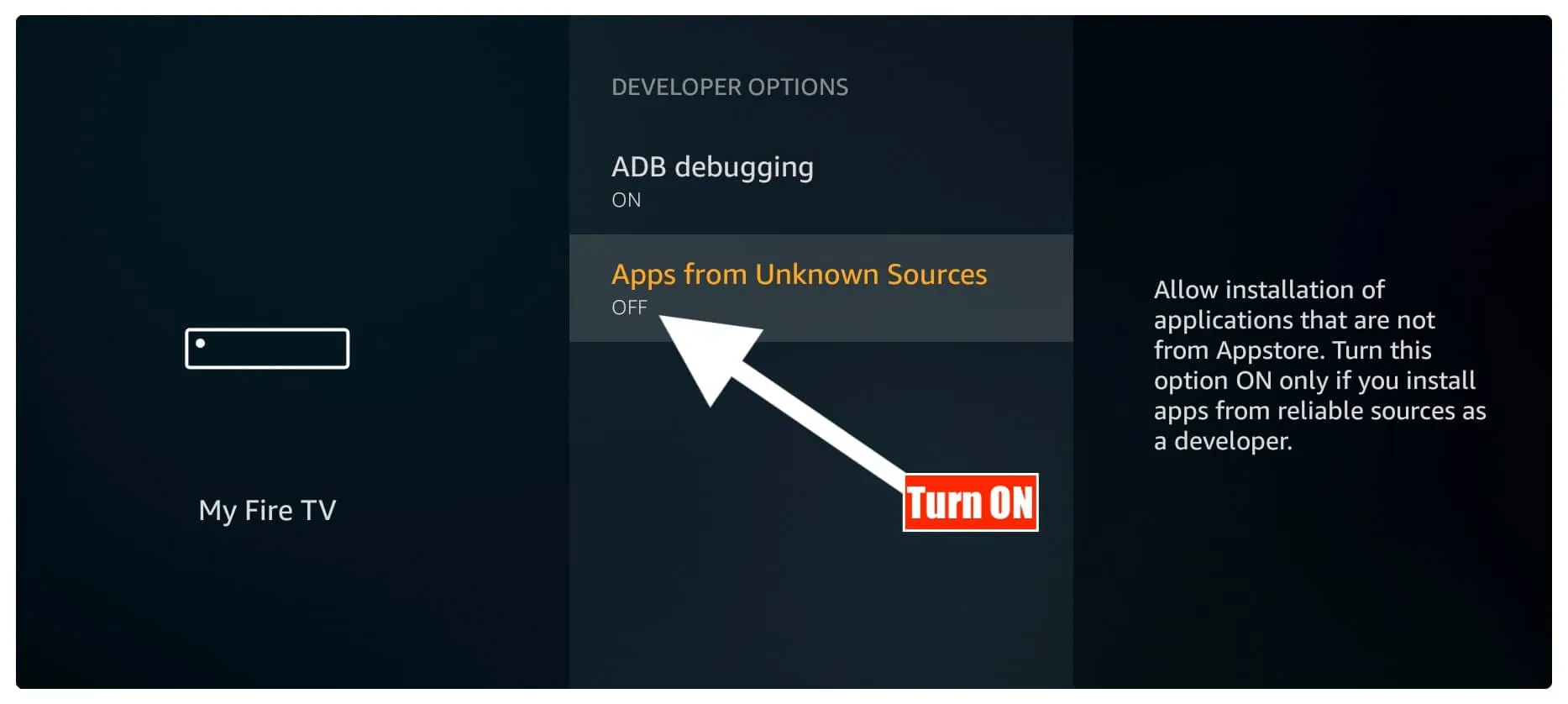
– On the window that opens next, go ahead and click on Apps from Unknown Sources
You need to click this option only if it is currently OFF
– You are prompted with a warning message saying that it is not safe, keeping the option Apps from Unknown Sources turned on. Rubu TV is a safe app. So, nothing to worry about
Click Turn On
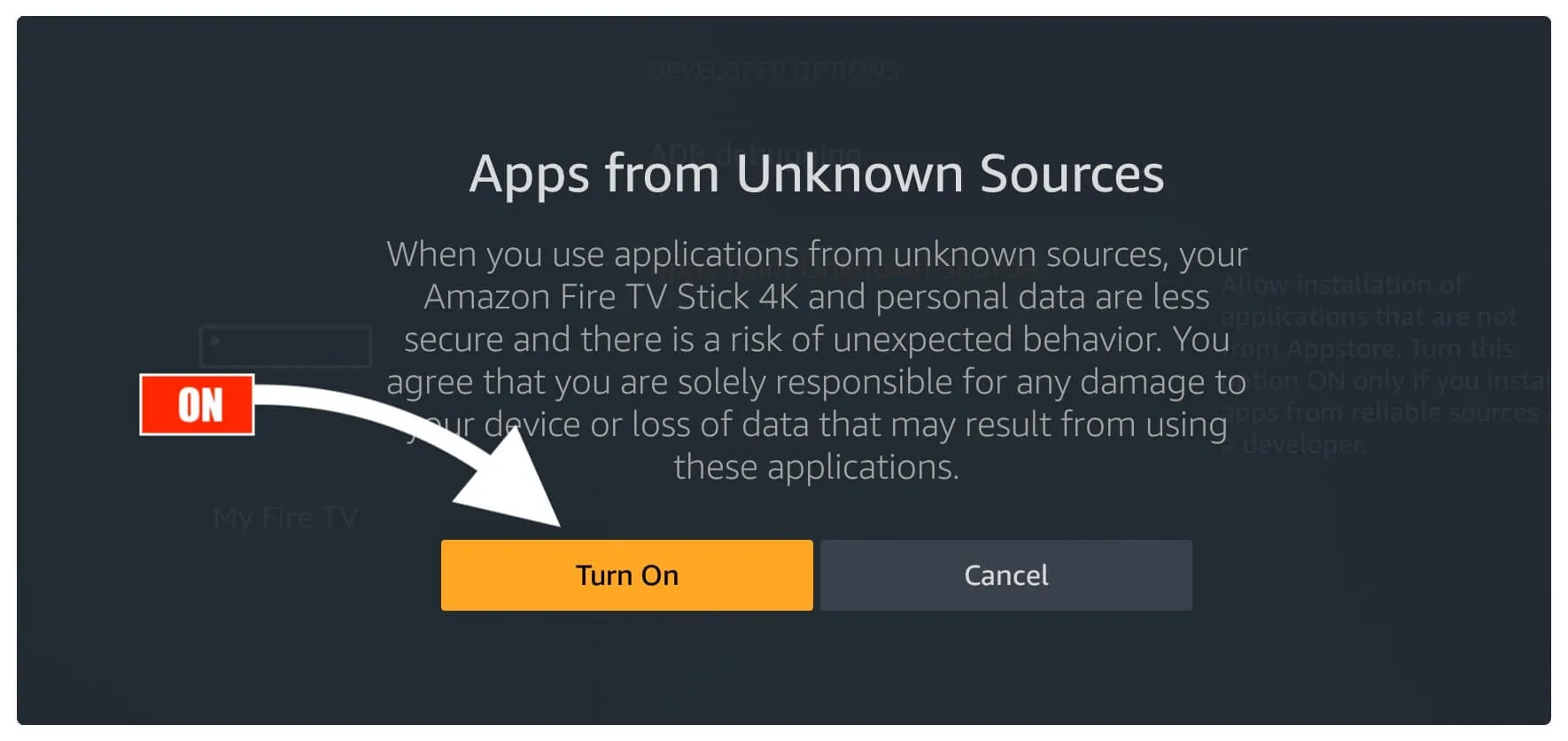
Once you have enabled Apps from Unknown Sources, you may start installing the Rubu TV app on FireStick. Here are the steps:
1- Go to the FireStick home screen again. When you are there, select the magnifying glass/lens icon in the top left corner to open the Search window
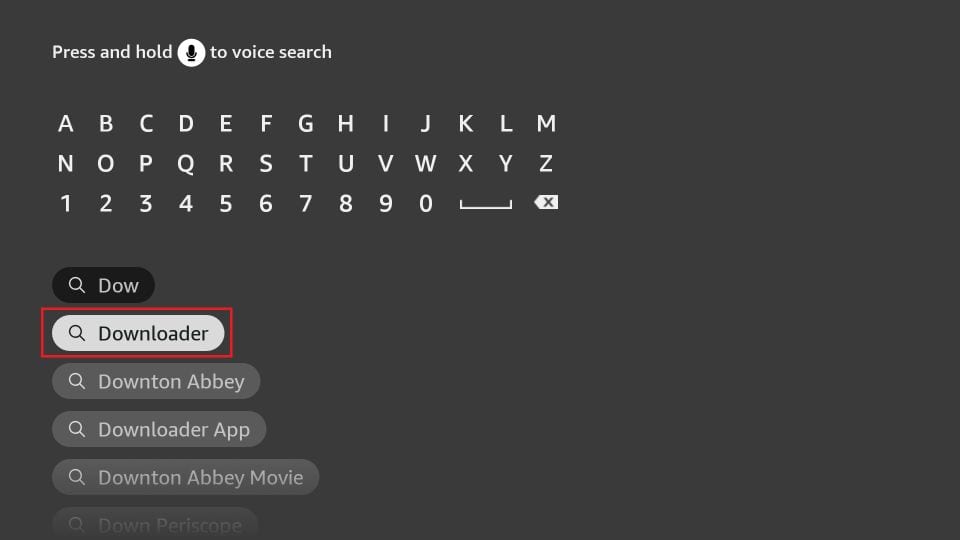
2- In the Search window, search for the app called Downloader
This is the app through which we will sideload Rubu TV on FireStick
Follow the instructions that appear on the screen and install this app
For the detailed guide, read how to sideload apps on FireStick with Downloader
3- You may now open the Downloader app
When you run it for the first time, some prompts will be displayed. Dismiss them by choosing the appropriate options
Fix Permission Popup Box (Allow storage permission)
Do not worry. Please read this article: https://www.wedostreaming.com/iptv/120-how-to-allow-storage-permission-applications-amazon-firetv-firesticks
-or-
Go to Settings-> Applications-> Manage Installed Applications-> click on the Downloader App; then click on Permissions; check to see that storage is on Allowed if not then please allow it.
When the following screen of the app appears, click the textbox
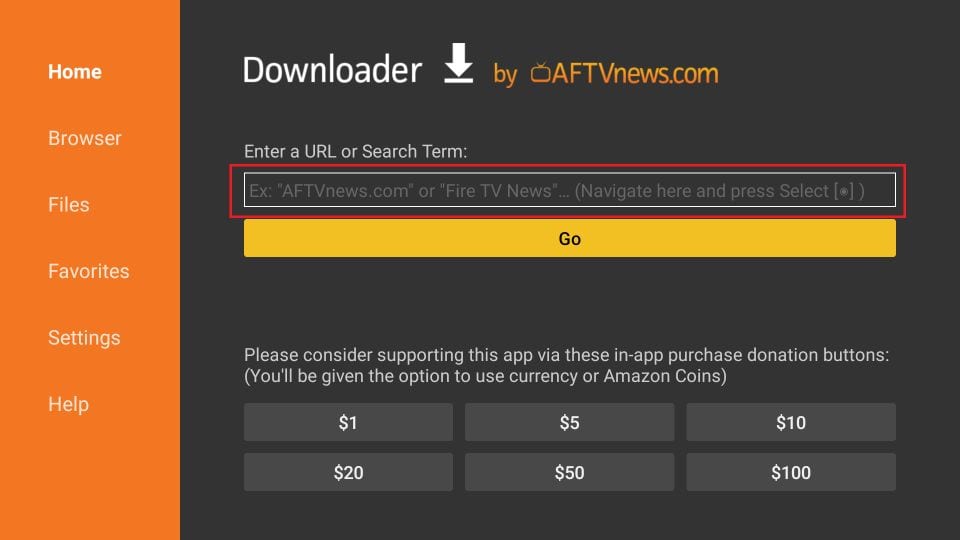
Write the following IPTV app's name one by one in the search box and select go.
Paid IPTV apps;
- Smart IPTV app
- Smart One IPTV app
- Net IPTV app
- IPTV Extreme app
Smart IPTV app / SIPTV app
- Install the Smart IPTV app
- Open the app and it will show your MAC address/ID on the first screen.
- Take a visible Photo/Screenshot of that screen and then send it to us
- One of our agents will configure the app for you.
- Make sure you mentioned in the email that you have got the MAC address from Smart IPTV. Please note that your MAC Address/ID should look like 00:AC:09:BB:CA:09
- *Please note that IPTV is not a free app. It's owned and operated by another company and they charge $ for a lifetime license.
Smart One IPTV app
- Install Smart One IPTV app
- Open the app and it will show you your MAC address/ID on the first screen.
- Take a visible Photo/Screenshot of that screen and then send it to us
- One of our agents will configure the app for you.
- Make sure you mentioned in the email that you have gone to the MAC address from Smart One IPTV. Please note that your MAC Address/ID should look like 00:AC:09:BB:CA:09
- *Please note that IPTV is not a free app. It's owned and operated by another company and they charge $ for a lifetime license.
Net IPTV app
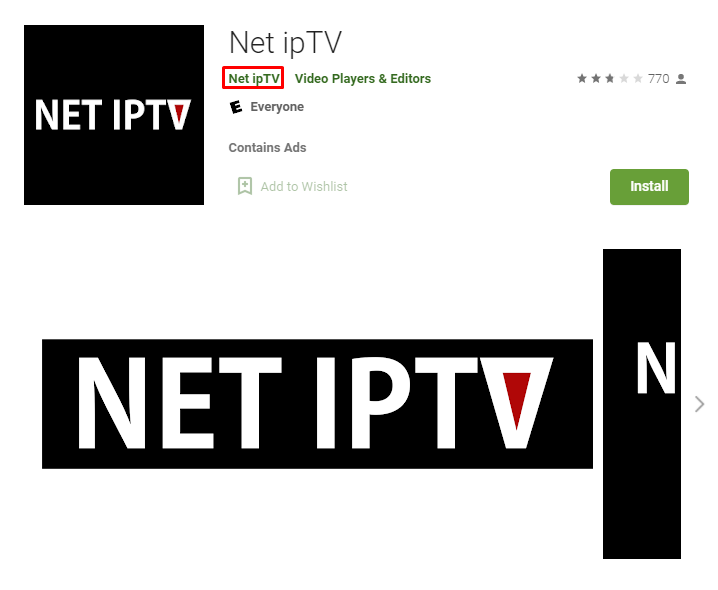
- Please install the Net IPTV app
- Open the app and it will show your MAC address/ID on the first screen.
- Take a visible Photo/Screenshot of that screen and then send it to us
- One of our agents will configure the app for you.
- Make sure you mentioned in the email that you have got the MAC address from Net IPTV. Please note that your MAC Address/ID should look like 00:AC:09:BB:CA:09
- *Please note that IPTV is not a free app. It's owned and operated by another company and they charge $ for a lifetime license.
 Can't find what you're looking for?